Heidi on your desktop, no bot in the call.
The desktop app records the meeting from your own machine. No participant named Heidi, no bot knocking in the waiting room. It asks before every recording, shows the live copilot right next to the call, and opens the whole of Heidi in its own window.
Windows 10 or later, 64-bit. The installer is not code-signed yet, so Windows shows "Windows protected your PC" the first time: click More info, then Run anyway. It's the standard notice for any unsigned installer, not a problem with me.
The macOS version comes next.
For the calls where a bot is one guest too many.
Sales and consultants
Some clients don't want a bot in the room, and some companies block them at the door. From your PC, nothing joins the call: the recording comes from your own machine, and the copilot stays for your eyes only.
Meetings without a link
A meeting in a room, a phone call on speaker, a Webex, a Slack huddle. Record without a video call captures your microphone and what your PC plays, and the summary is written like any other.
People who live in the Zoom and Teams apps
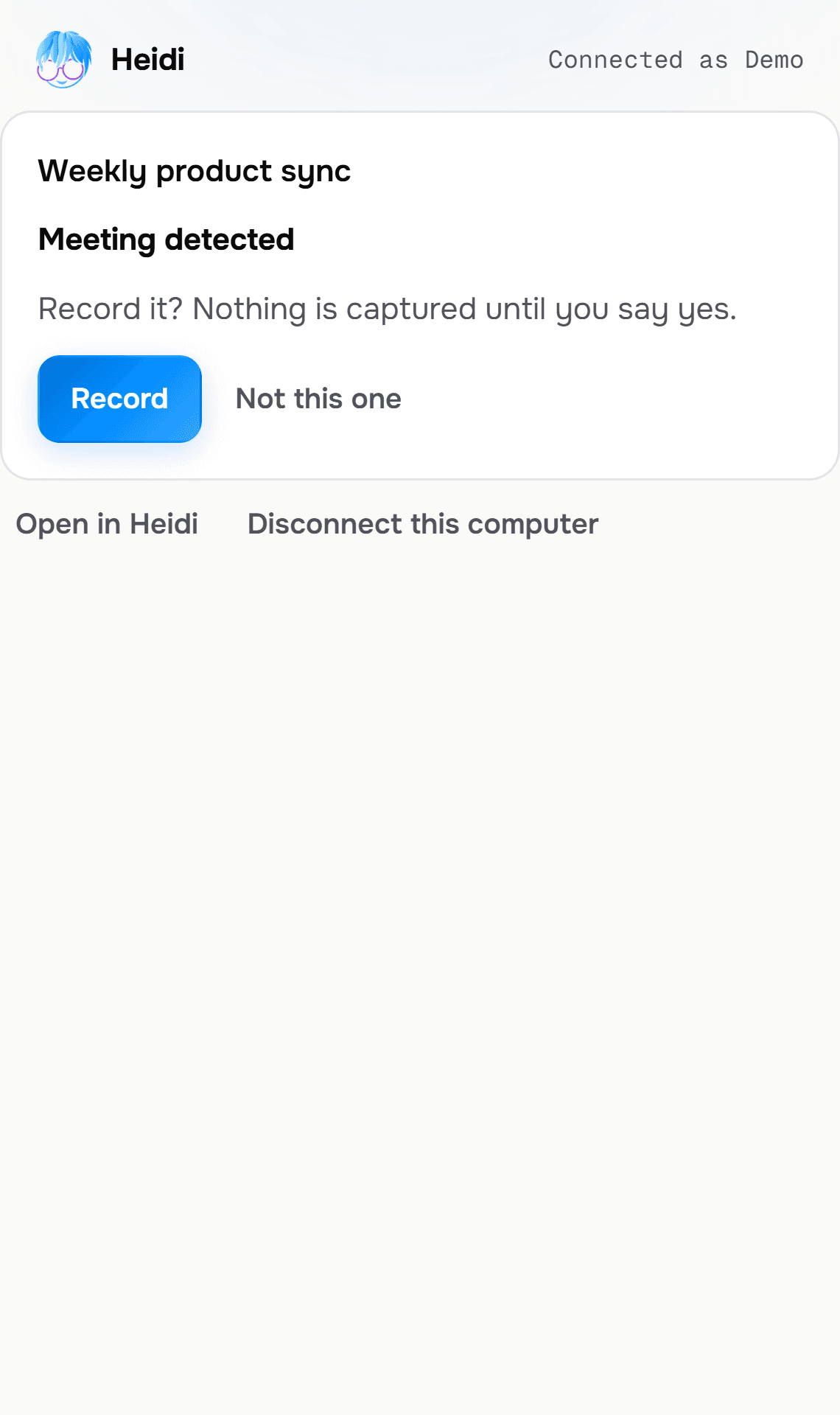
I detect the Zoom app, the Teams app and Google Meet in Chrome or Edge, and I ask whether you want to record. Nothing starts until you click.
People who want Heidi as an app
The whole of Heidi in its own window, with its icon in the taskbar. It starts with Windows and waits quietly in the notification area, one click away, like Slack or Notion.
Install once. Then I ask, every time.
- 1Install the app and open it. It shows an eight-character code and opens app.hi-heidi.ai in your browser, where you're already signed in. Type the code there to authorise this PC. I never ask for your password in the app.
- 2Start a meeting in the Zoom app, the Teams app, or Google Meet in Chrome or Edge. A small window appears above the call: this meeting was detected, do you want to record it? Nothing is captured until you click Record.
- 3While it records, the small window shows the live copilot: suggestions, your goal, the Pulse of the conversation. Pause and Stop stay one click away, in the app itself, not in a web page.
- 4Stop, and the summary, the tasks and the follow-up are written in Heidi, exactly as for a meeting recorded by the bot.
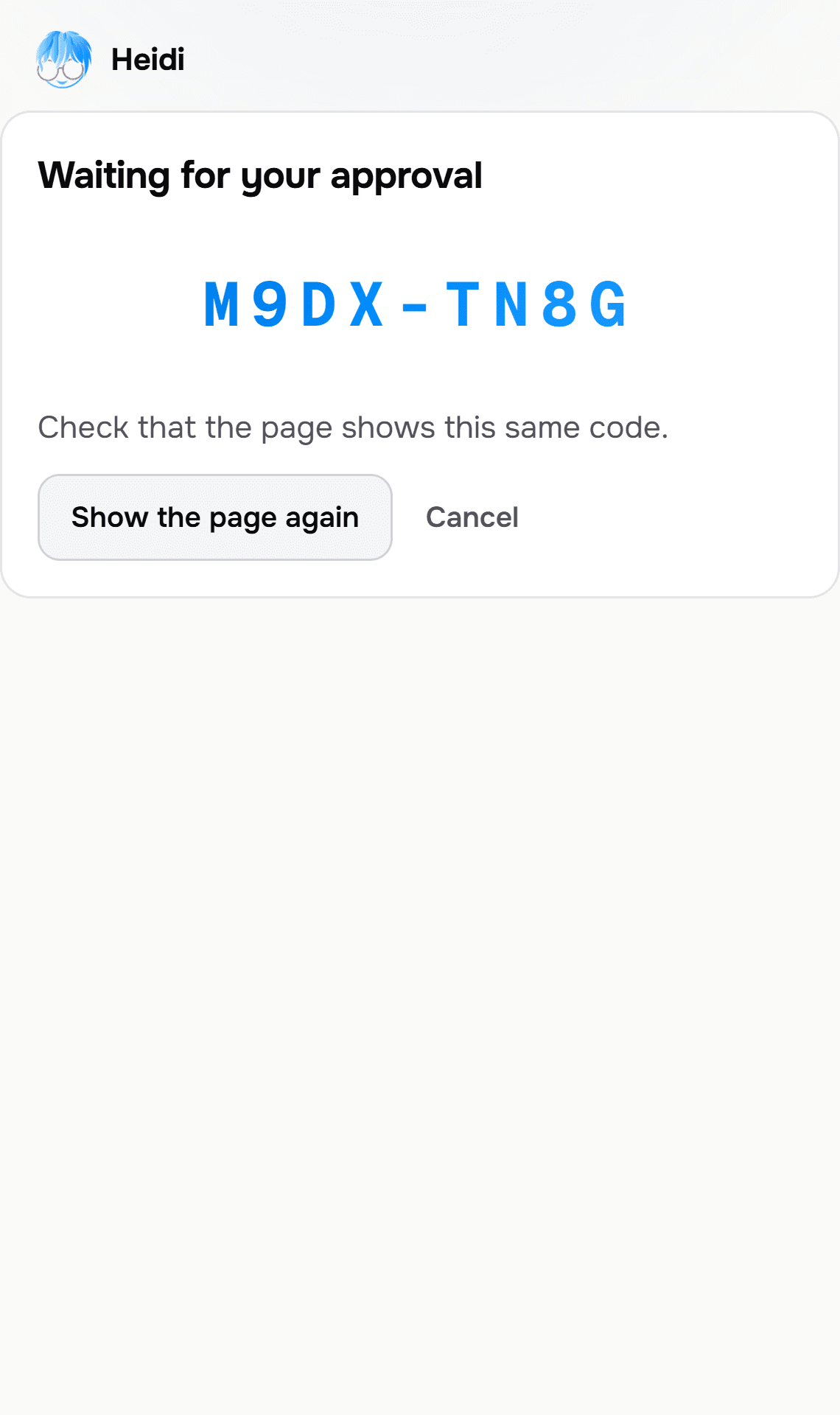
The pairing screen: an eight-character code to type on app.hi-heidi.ai, in your own browser.
The meeting window. Not your screen.
Asks before every recording
A detected meeting opens a question, never a recording. Decline it, and I won't ask again for that one.
Captures the meeting window and its audio
On a recognised meeting, the recording is scoped to that window. Not your whole screen, not your other apps. That scope is enforced by the recording engine, not by good intentions.
Reminds you to tell the others
Without a bot in the call, nobody else can see that it's being recorded. While it records, the window reminds you to say it out loud at the start.
Never asks for your password
You authorise the PC once, in your browser, with a code. The app only ever holds a token for this PC, and you can revoke it from Settings at any time.
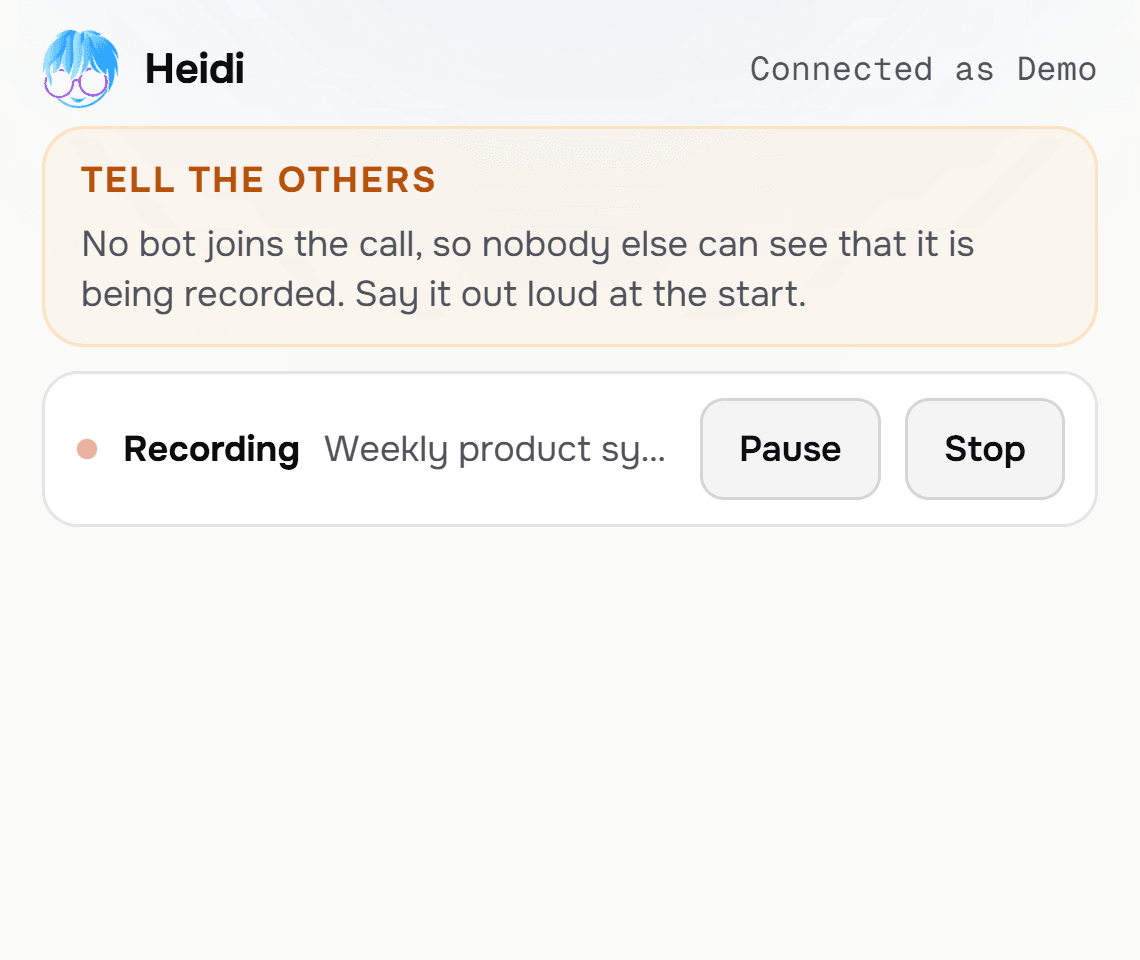
During the recording: status, meeting title, Pause and Stop, and the reminder to tell the others. The live copilot opens right below.
The room, the phone, the browser tab.
One button in the app, or in the notification area menu, records your microphone and what your PC plays, mixed. It works anywhere: a meeting in a room, a call on speaker, a Zoom open in a browser tab. Two things to know before you use it: the scope is everything your PC plays, so a video in another tab would be captured too; and with no platform to ask, the transcript labels your microphone Host and everyone else Guest. You attach names afterwards in the meeting's speaker panel. It stops on its own after three hours.
The checklist.
- Windows 10 or later, 64-bit. macOS comes next.
- A Heidi account. The app signs in with a code in your browser, never with a password typed into the app.
- For automatic detection: the Zoom desktop app, the Microsoft Teams desktop app, or Google Meet in Chrome or Edge. Zoom and Teams in a browser tab aren't detected: use Record without a video call, or send the bot from the web app.
- For Record without a video call: Windows must allow desktop apps to use the microphone (Settings, Privacy and security, Microphone). Without it, I only hear what your PC plays, not the room.
The desktop questions people ask.
The app is free. The copilot needs me.
14 days of the full copilot, live coaching and scoring included. Then install me on your PC.
Card up front, zero tricks, $0 for 14 days. Cancel anytime.